
By TOM BOWSER
Lock separate clips in a track to prevent them from being accidentally moved and out of synchronization with the rest of your tracks. I like to time-lock clips after I've finished drum editing.
The Pro Tools Reference Guide defines a clip as "a segment of audio, MIDI, or video data. A clip could be a drum loop, a guitar riff, a verse of a song, a recording take, a sound effect, some dialog, or an entire sound file."
To Time Lock one or more clips:
- Select the clips you want to time lock. You can select clips on one or multiple tracks.
- To select one or more clips on a track:
- Left-click and hold down the left mouse button in the upper half of the track at the point you want to begin your selection.
- Drag the mouse cursor over the clip or clips you want to select.
- Release your left mouse button when you've finished your selection.
- To select an entire track and all its clips:
- Left click in the upper half of the track.
- Press and hold down the Ctrl key, then press the A key on your keyboard.
- Press and hold down the Windows Logo + Alt keys, then press the letter L key.
All Time-Locked clips will show a small closed lock in the bottom left-hand corner. See the image below.
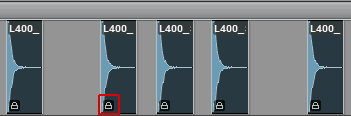
To unlock a Time-Locked clip or clips:
- Select the clips you want to unlock.
- Press and hold down the Windows logo + Alt keys, then press the letter L key.