Friday, December 17, 2021

What Should The Drums Sound Like?

By TOM BOWSER

Anyone who's mixed acoustic drums understands they can be a challenge whether live or tracks. What should the drums sound like? New to mixing acoustic drums? Listen to what a drummer thinks his drum set should sound like. What he likes, doesn't like and why. Listen to drummer Thomas Lang discuss his drum set.

Listen to Thomas Lang play.

Consolidate a Track - Pro Tools

By TOM BOWSER

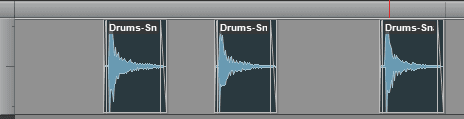
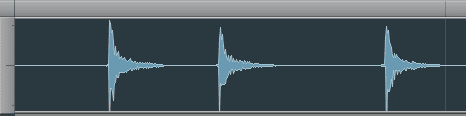
Consolidating a track joins all of the "cut" sections (separate clips) of a track and creates one continuous track. Why would you want to consolidate a track?

Consolidating a track makes it:

  • easier to transfer the consolidated track/file to someone else
  • impossible to accidentally move individual cut regions from their original position on the time line
  • possible to use clip gain to adjust the level of the consolidated track as a whole

NOTE: For the best results you want to add "fades" to the beginning and end of every clip/cut section BEFORE consolidating the track or tracks. Review how to add fades…

How to consolidate a track:

  1. Duplicate the tracks playlist. This will allow you to easily go back to the original track playlist if you don't like the results of the consolidation process. Review how to duplicate a tracks playlist...
  1. Select all the clips in the track you want to consolidate:
    • Left click in the top half of the track.
    • Press and hold down the CTRL key then press the letter a.
Select Multiple Clips in Pro Tools
  1. Press and hold down the ALT + SHIFT + 3 keys. You can also left click on Edit then Consolidate Clip within the Pro Tools menu bar. The consolidation process will immediately begin.
Consolidate Multiple Clips in Pro Tools

NOTE: Any muted clips or sections within a track will be included in the consolidated track as silence. Automation data is NOT integrated within the consolidated track. You must use the Bounce to Disk process to include automation in a file.

Thursday, December 16, 2021

Rename The Playlist Of Multiple Tracks - Pro Tools

By TOM BOWSER

Rename the playlist of multiple tracks:

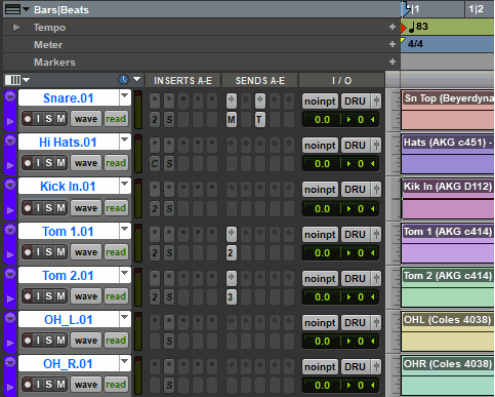
  1. Select all the tracks you want to rename. See image below. Review how to select multiple tracks...
Rename the playlist of multiple tracks in Pro Tools
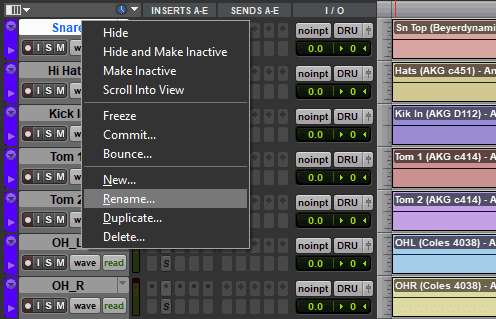
  1. Right click on the name of the top track (in the Edit Window) you want to rename (Snare.01 in the image above).
  2. Left click "Rename…" on the menu that appears.
  3. Type the new name for the track then press the Enter key or click "OK".
  1. Right click on the name of the top track (in the Edit Window) you want to rename (Snare.01 in the image above).
  2. Left click "Rename…" on the menu that appears.
Track rename menu in Pro Tools
  1. Type a new name for the track then press the ENTER key on your keyboard. See image below.
Name a track window in Pro Tools

The track name dialog window for the next selected track will automatically appear to allow you to rename it. Rename it, press the ENTER key and continue this process until all the tracks have been renamed.

To bring the original version of the track/playlist back into the session:

  1. Left click on the Playlist selector dropdown arrow.
  2. Choose your original track/playlist name from the list.

Select Multiple Tracks - Pro Tools

By TOM BOWSER

How to select multiple tracks:

  1. Left click on the name of the first of multiple tracks to select it. The background turns white. See image below.
Duplicate the playlist of multiple tracks in Pro Tools
  1. Press and hold down the SHIFT key on your keyboard.
  2. Left click on the last track name to select it. All the tracks between the first and last track will also be selected. See image below.
Duplicate Multiple Playlists in Pro Tools

ALTERNATIVE:

  1. Press and hold down the CTRL key on your keyboard.
  2. Left click on the name of each track you want to select.

Duplicate The Playlist Of Multiple Tracks - Pro Tools

By TOM BOWSER

Duplicate the playlist of multiple tracks:

  1. Left click on the name of the first of multiple tracks to select it. The background turns white. See image below.
Duplicate the playlist of multiple tracks in Pro Tools
  1. Press and hold down the SHIFT key on your keyboard.
  2. Left click on the last track name to select it. All the tracks between the first and last track will also be selected. See image below.
Duplicate Multiple Playlists in Pro Tools
  1. Press and hold down the SHIFT + Alt keys on your keyboard.
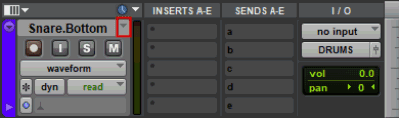
  2. Left click on the playlist selector dropdown arrow to the right of the track name of any one of the selected tracks. I've drawn a red line around the Playlist selector in the image below.
A Playlist Selector in Pro Tools
  1. Left click on "Duplicate…" from the menu that appears.
Duplicate a Playlist in Pro Tools
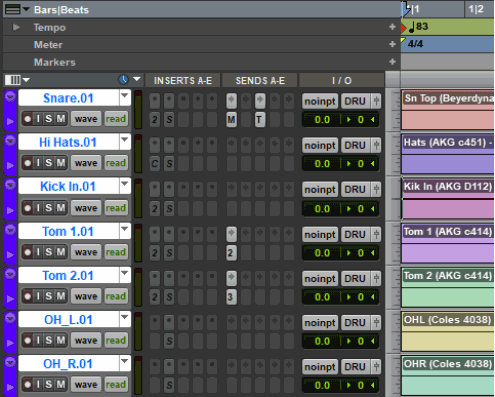
  1. The new playlist of each track becomes the default you see in the session. Each track you've created a new playlist for is automatically given a new name. You can rename them. See image below.
New Playlist Showing Renamed Drum Tracks in Pro Tools
  1. The new playlist of each track becomes the default you see in the session. Each track you've created a new playlist for is automatically given a new name. You can rename them. See image below.

To bring the original version of the track/playlist back into the session:

  1. Left click on the dropdown arrow playlist selector.
  2. Choose your original track/playlist name from the list.

Duplicate a Tracks Playlist Before Editing - Pro Tools

By TOM BOWSER

NOTE: It's a good idea to create a duplicate playlist for any track or tracks you edit BEFORE you begin the editing process. Work on the duplicate.

If you have a duplicate track playlist you can go back to the original playlist if you make a mistake or don't like the results of editing you've done. You can use duplicate playlists as a reference to evaluate the changes you made to your edited tracks. Duplicate playlists can also be used when experimenting with new ideas and techniques on individual tracks or entire mixes.

Create a duplicate "Playlist" For a track:

  1. Left click on the Playlist selector dropdown arrow. I've drawn a red line around it in the image below.
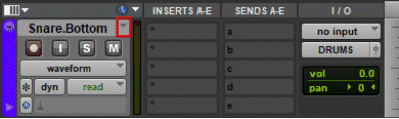
Pro Tools Playlist selector dropdown arrow.
  1. Left click on "Duplicate…" from the menu that appears.
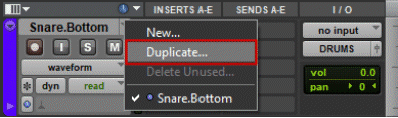
Duplicate a Playlist in Pro Tools
  1. Type a name for the new playlist or use the default.
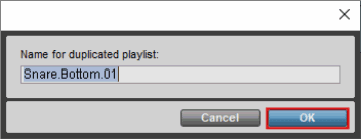
Name a duplcated playlist in Pro Tools
  1. Left click on the "OK" button to save the duplicate playlist.

NOTE: The new playlist of the track becomes the default you see in the session. Each track you've created a new playlist for is automatically given a new name. You can rename them.

To bring the original version of the track/playlist back into the session:

  • Left click on the dropdown arrow playlist selector.
  • Choose your original track/playlist name from the list.