Monday, November 27, 2023

Use Clip Gain To Reduce Breath or Breathing Sounds - Pro Tools

By TOM BOWSER

REMINDERS:

  • Clip Gain in Pro Tools allows you to adjust the gain/signal level of a clip before it reaches plug-ins inserted on the track or the tracks output level fader.
  • The Clip Gain line is only visible if the track is set to size small or larger.
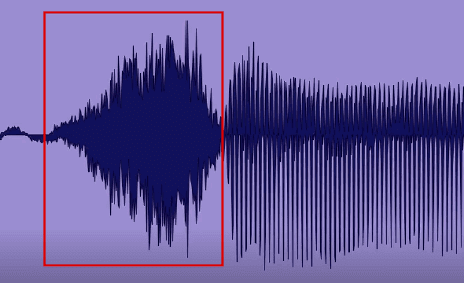
  1. Locate a breath or breathing sound you want to decrease. A breath between words in a vocal track often has a distinctive appearance that helps identify it. I've drawn a red rectangle around the sound of a vocalist breathing between words in the image below.
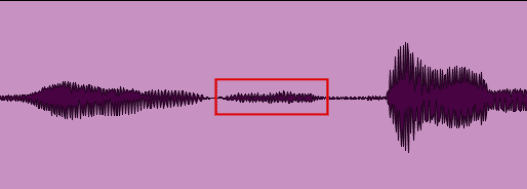
Breath Sound Within Vocal Track in Pro Tools
  1. Press and hold down the SHIFT + Windows logo keys then press the - key (hyphen) on your keyboard to show the Clip Gain Line. Press the - key again to toggle the visibility of the Clip Gain line. The Clip Gain Line is used to adjust the clip gain level.

Vocal Track Showing The Clip Gain Line
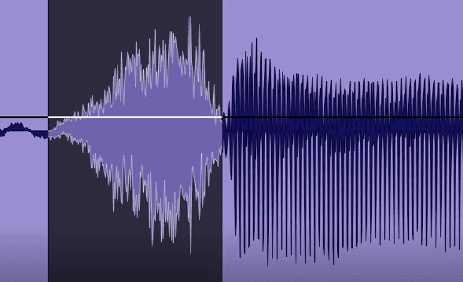
  1. Select the sound of the vocalist breathing (see image below).
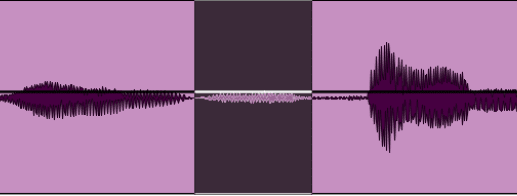
Selection Of Breath Noise Within Vocal Track In Pro Tools
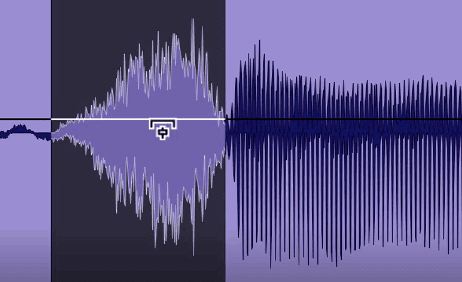
  1. Hover your mouse cursor near the Clip Gain Line until it changes into the Trim tool as in the image below.
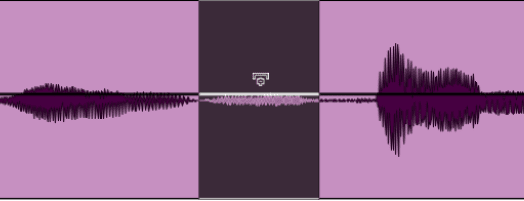
Trim Tool Over Clip Gain Line In Pro Tools
  1. Press and hold down the SHIFT + Windows logo keys on your keyboard.
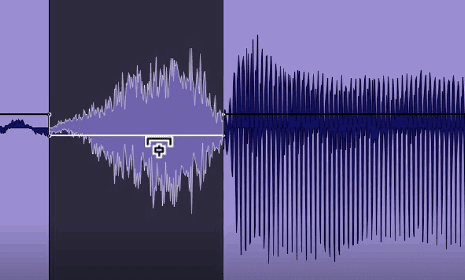
  1. Roll your mouse scroll wheel backward to reduce the Clip Gain level of the breath sound. Roll your mouse scroll wheel forward to increase the Clip Gain level if you've reduced the level too much. Press and hold down your left mouse button to verify the current Clip Gain level. See the image below.

    See #1 under TIPS: if you don't have a mouse with a scroll wheel.
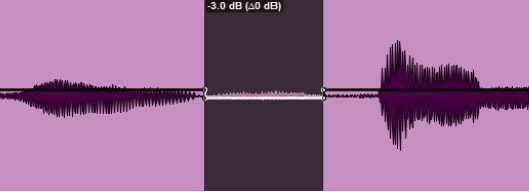
Breath Noise Reduced With Clip Gain In Pro Tools
  • Listen to verify that the change you made sounds natural (if that's what you want). I suggest a -3 dB decrease or more as needed. If you decrease the Clip Gain level too much you may hear an obvious drop out in the sound during playback.
  • See tip #1 below if you don't have a mouse with a scroll wheel.

TIPS:

  1. Another way to modify the Clip Gain level once a selection has been made is to:
    • Press and hold down the SHIFT and Windows logo keys.
    • Press the down arrow key on your keyboard to decrease or up arrow key to increase the Clip Gain level.
  1. Increase your speed and consistency. Once you've selected a breath sound and decreased its Clip Gain level:
    1. Right click within the area you selected.
    2. Hover your mouse over the word "Clip Gain" on the menu.
    3. Left click on "Copy Clip Gain".
    4. Move to the next breath sound and select it.
    5. Right click within the selection.
    6. Left click on "Paste Clip Gain" from the menu.
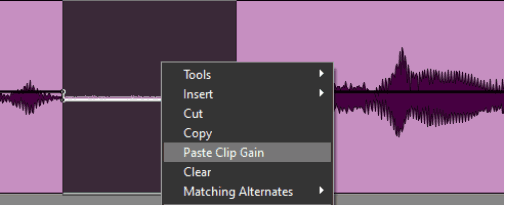
Paste Clip Gain In Pro Tools

Wednesday, November 8, 2023

View Both The Left & Right Channel Of A Multi-Mono Plug-in - Pro Tools

By TOM BOWSER

Split a stereo multi-mono plug-in into a separate left and right instance of the plug-in. This allows you to simultaneously view and independently adjust the controls of both the left and right sides of the plug-in.

  1. Press and hold down the ALT key on your keyboard.
  2. Left click on either the left or right channel selector of any multi-mono plug-in. A second plug-in will appear. It will be the opposite channel/side to the channel indicator you clicked on.

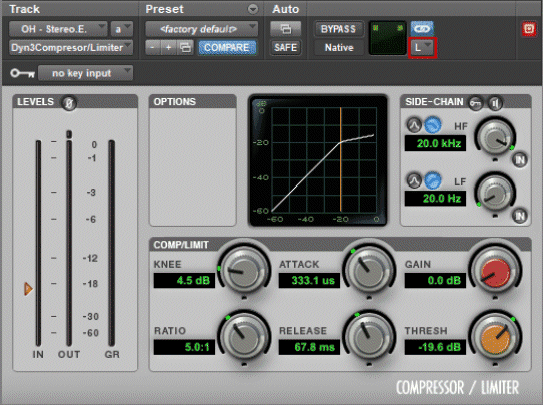
In the image below, I've drawn a red line around the left channel selector of a multi-mono version of the Dyn3 Compressor/Limiter included with Pro Tools.

The image below shows the left channel/side of a multi-mono version of the Dyn3 Compressor/Limiter inserted on a stereo channel.

Left Channel Side Of A Multi-mono Version Of The Dyn3 Compressor-Limiter In Pro Tools

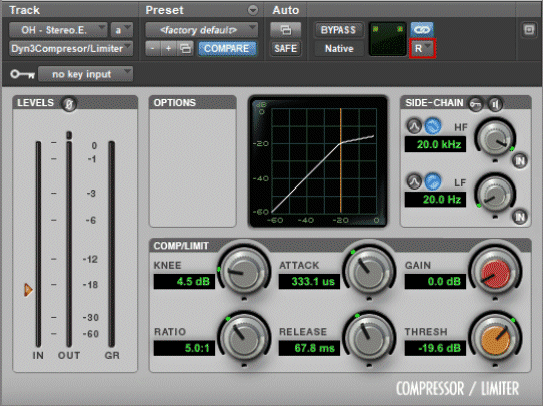
The image below shows the right channel/side of a multi-mono version of the Dyn3 Compressor/Limiter.

Right Channel Side Of A Multi-mono Version Of The Dyn3 Compressor-Limiter In Pro Tools

Monday, November 6, 2023

Restore Your Last Selection - Pro Tools

By TOM BOWSER

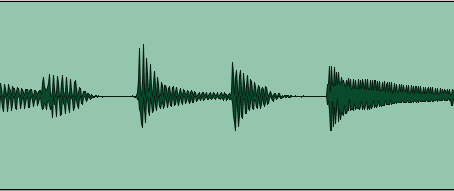
If you accidentally lose your most current edit or timeline selection you can "restore" it .

Lost Selection Within Clip in Pro Tools
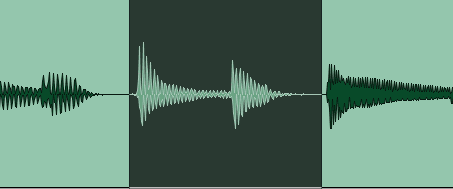
  • Press and hold down the CTRL + ALT keys then press the Z key on your keyboard. Your most current selection is restored (see image below).
Restore Lost Selection Within Clip in Pro Tools

You can also:

  • Left click on "Edit" then "Restore Last Selection" on the Pro Tools menu bar.

NOTE:

Selections cannot be "re-done" or "un-done" and are not available in the Undo History Window. Selections can only be "restored" using the above methods.

Saturday, October 21, 2023

Use Clip Gain to De-Ess a Vocal Track - Pro Tools

By TOM BOWSER

This Quick Start will teach you how to use "clip gain" to manually "De-Ess" or reduce the level of an S sibilant at the beginning of a word in a vocal track. In some cases, manual editing can be more effective than using a specialized De-Esser plug-in. You may choose to use both manual editing and a De-Esser plug-in simultaneously.

REMINDERS:

  • Clip gain in Pro Tools allows you to adjust the gain/signal level of a clip before it reaches plug-ins inserted on the track or the track's output level fader.
  • The Clip Gain Line is only visible if the track is set to size small or larger.

Decrease the level of an S sibilant at the beginning of a word:

  1. Listen to locate an S sibilant you want to decrease. The S sibilant has a distinctive appearance that helps identify it (see the image below).
S Sibilant In A Vocal Track Within Pro Tools
  1. Press and hold down the SHIFT + Windows logo keys and then press the - key (hyphen) on your keyboard to show the Clip Gain Line. Press the - key again to toggle the visibility of the Clip Gain Line. The Clip Gain Line is used to adjust the clip gain level.
  1. Select the S sound (sibilant) you want to reduce. See the image below.
Selected S Sibilant In A Vocal Track Within Pro Tools
  1. Hover your mouse cursor near the Clip Gain Line until it changes into the Trim tool as in the image below.
Mouse Cursor Hovering Over Clip Gain Line In Pro Tools
  1. Press and hold down the SHIFT + Windows logo keys on your keyboard.
  2. Roll your mouse scroll wheel backward to reduce the clip gain level of the S sibilant. Roll your mouse scroll wheel forward to increase the clip gain level if you've reduced the level too much. See #2 under TIPS: if you don't have a mouse scroll wheel.

    Listen to verify that the change you made sounds natural (if that's what you want).

Clip Gain Is Reduced By Dragging Clip Gain Line Down In Pro Tools

TIPS:

  1. To verify the current clip gain level:
    • Hover your mouse cursor over the Clip Gain Line until it changes into the Trim tool.
    • Press and hold down your left mouse button.

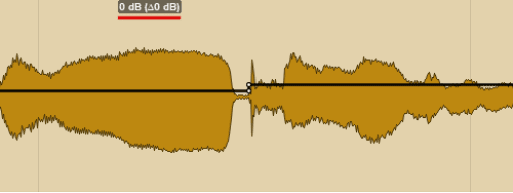
The clip gain level will display in a rectangle located at the top of the clip. I have underlined the clip gain level in red within the image below.

Clip Gain Level Is Displayed in Pro Tools
  1. A different way to modify the clip gain level once a selection has been made is to:
    • Hover your mouse cursor over the Clip Gain Line until it changes into the Trim tool.
    • Press and hold down your left mouse button.
    • Drag the Clip Gain Line down to reduce or up to increase the clip gain level.
  1. For finer control over how much the Clip Gain Line moves when you drag it up or down:
    • Hover your mouse over the Clip Gain Line until it changes into the Trim tool.
    • Press and hold down your left mouse button.
    • Press and hold down the CTRL key on your keyboard.
    • Drag the Clip Gain Line up to increase or down to decrease the clip gain level.

Saturday, October 14, 2023

Use .Wav File Drum Samples With Slate Trigger

By TOM BOWSER
Use Wav Files With Steven Slate Trigger and Pro Tools

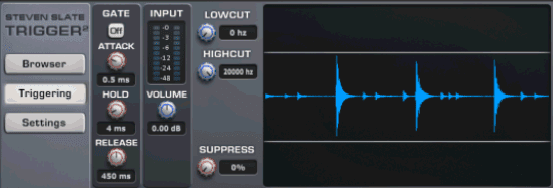
Slate Trigger 2 allows you to use .wav files as drum samples. If you use a .wav file as a sample you will hear the same sample each time a drum hit is replaced by Trigger 2.

The multi-sample .tci file format Trigger uses by default to replace a drum hit can sound more natural and realistic than a single file .wav drum sample.

You can make your own drum samples from drum tracks. See my tutorial Make Your Own Drum Samples to get started.

To install a .wav file as a drum sample that Trigger 2 can use:

  1. Open/run Trigger 2 in your DAW.
  2. Locate the folder called "Trigger2Library" on your computer. It holds all the samples Trigger 2 uses. Left click the "Settings" button in Trigger 2. You will see the location of the Trigger2Library to the right of the "Select Base Dir" button (see image below).

    Reminder: To open the Windows file manager (Explorer) press and hold down the Windows/Start key then press the letter E key.

  3. Copy the .wav files you want to use into the "Trigger2Library" folder. Make sure you do not accidentally copy the .wav files into a subfolder or you may have trouble finding them when you want to use them.

    NOTE: If you have multiple .wav samples I suggest you create your own folder or folders inside the Trigger2 Library folder. Give folders logical, meaningful names, for example, "tomwavs" or "snarewavs".

  1. Left click on:
  • Trigger's "Browser" tab (see image below)
  • the browser "Refresh" button to see your folder and .wav sample files
    Slate Trigger Browser Tab

TIPS:

  1. You can move the Trigger2Library folder to a location that is more convenient for you to access when saving and backing up your samples.
    • Left click the "Settings" button in Trigger 2 (see image below).
    • Left click "Select Base Dir" and navigate to where you want to move the Trigger2Library. The Trigger2Library and all of its contents will be moved to the location you choose.
  2. Save one or more backups of your .wav sample files and the entire Trigger2 Library folder/directory.
  3. There are good reasons to make drum samples. See my tutorial Make Your Own Drum Samples to learn more.

    If you are working with a drummer, discuss why you want to make drum samples and ask for permission BEFORE you sample any drums. From both a moral and legal perspective, the drummer's sounds are owned by the drummer.

Wednesday, March 22, 2023

Soulful and Funky - Drummer Bernard "Pretty" Purdie

By TOM BOWSER

What do James Brown's Ain't That A Groove, Say It Loud – I'm Black and I'm Proud, and Get on the Good Foot; Aretha Franklin's Rock Steady; and the soundtrack album for The Beatles film Sgt. Pepper's Lonely Hearts Club Band have in common? The soulful and funky drumming of the talented Bernard "Pretty" Purdie.

Download and mix FREE drum tracks of Bernard Purdie demonstrating the "Purdie Shuffle".

If you're new to mixing acoustic drums remember to check and if needed correct the phase of all the drum tracks relative to the Overhead tracks.

There are 20 tracks in all, including 3 Decca Tree microphone array tracks. Remember, you don't have to use all the tracks! Start simple if you want to, Snare Top, Kick In, Rack Toms 1 and 2, Floor Tom, and Overheads. Have fun, Tom Bowser