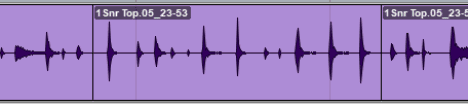
Wednesday, December 29, 2021

Create And Enable a Click Track - Pro Tools

By TOM BOWSER

How to create a click track:

  1. Left click on "Track" then "Create Click Track" on the Pro Tools menu bar.

Create a Click Track In Avid Pro Tools

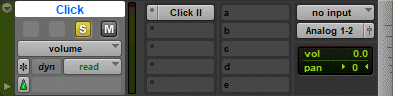
A Click track will be created in the current open session.

A Click Track In Avid Pro Tools

  1. Enable the click track by left clicking on "Options" then "Click" at the top of the Pro Tools menu bar. You know the click track is enabled when it has a checkmark to the left of the word "Click". See image below.

Enable a Click Track In Avid Pro Tools

You can also press the number 7 on your keyboard's numeric keypad to either enable or disable the click track.

  1. Left click on the Click track's solo button to hear only the click track. The solo button turns yellow when enabled.
Solo a Click Track in Avid Pro Tools
  1. Press your keyboard's Space bar to listen to the click track.

If you don't hear the click track when you start playback:

  • Verify you have enabled the click track as described in step 2 above.
  • Solo the click track as described in step 3 above.
  • Increase the level of the click track volume fader.

Wednesday, December 22, 2021

Consolidate Multiple Tracks In a Session - Pro Tools

By TOM BOWSER

NOTE: For these directions to work correctly you need to "Hide" any track you do NOT want to consolidate. Only show the tracks in the Edit window that you want to consolidate. You can consolidate 1 or ALL the tracks in a session using the following steps.

Consolidate multiple tracks in a session:

  1. Create a duplicate playlist for each track you want to consolidate. Consolidate the duplicate playlists NOT your original playlists. You can go back to the original playlists if you later find editing mistakes or other issues in the consolidated tracks. Review how to duplicate the playlist of multiple tracks…
  1. Left click anywhere along the Bars| Beats timebase ruler. It is located above and extends along the entire length of the first track in the Edit window of a Pro Tools session. I've drawn a red line around the Bars| Beats timebase ruler in the image below.

Bars and Beats Timebase Ruler in Pro Tools

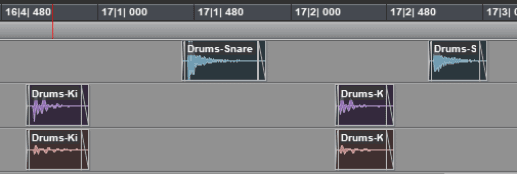
  1. Press the CTRL + a key on your keyboard to select all the clips within all tracks showing in the Edit window. The background of the clips will darken once selected. See image below.

Selected Clips Within Multiple Tracks in Pro Tools

  1. Press and hold down the Alt + SHIFT then 3 keys on your keyboard. The tracks will begin the consolidation process immediately. See the image of consolidated, selected tracks below.

TIPS:

  • Left clicking the Bars | Beats timebase ruler is a necessary step for these directions to work correctly. If these directions DO NOT work verify you have left clicked on the Bars | Beats timebase ruler BEFORE you press the CTRL + a keys to select all the clips in the tracks that are showing.
  • Only show the tracks in the Edit window that you want to consolidate.

Friday, December 17, 2021

What Should The Drums Sound Like?

By TOM BOWSER

Anyone who's mixed acoustic drums understands they can be a challenge whether live or tracks. What should the drums sound like? New to mixing acoustic drums? Listen to what a drummer thinks his drum set should sound like. What he likes, doesn't like and why. Listen to drummer Thomas Lang discuss his drum set.

Listen to Thomas Lang play.

Consolidate a Track - Pro Tools

By TOM BOWSER

Consolidating a track joins all of the "cut" sections (separate clips) of a track and creates one continuous track. Why would you want to consolidate a track?

Consolidating a track makes it:

  • easier to transfer the consolidated track/file to someone else
  • impossible to accidentally move individual cut regions from their original position on the time line
  • possible to use clip gain to adjust the level of the consolidated track as a whole

NOTE: For the best results you want to add "fades" to the beginning and end of every clip/cut section BEFORE consolidating the track or tracks. Review how to add fades…

How to consolidate a track:

  1. Duplicate the tracks playlist. This will allow you to easily go back to the original track playlist if you don't like the results of the consolidation process. Review how to duplicate a tracks playlist...
  1. Select all the clips in the track you want to consolidate:
    • Left click in the top half of the track.
    • Press and hold down the CTRL key then press the letter a.
Select Multiple Clips in Pro Tools
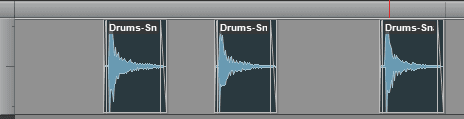
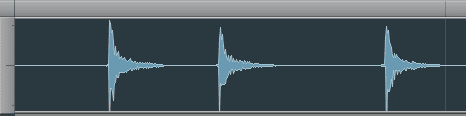
  1. Press and hold down the ALT + SHIFT + 3 keys. You can also left click on Edit then Consolidate Clip within the Pro Tools menu bar. The consolidation process will immediately begin.
Consolidate Multiple Clips in Pro Tools

NOTE: Any muted clips or sections within a track will be included in the consolidated track as silence. Automation data is NOT integrated within the consolidated track. You must use the Bounce to Disk process to include automation in a file.

Thursday, December 16, 2021

Rename The Playlist Of Multiple Tracks - Pro Tools

By TOM BOWSER

Rename the playlist of multiple tracks:

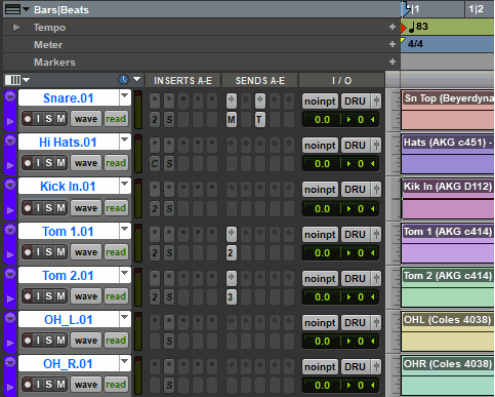
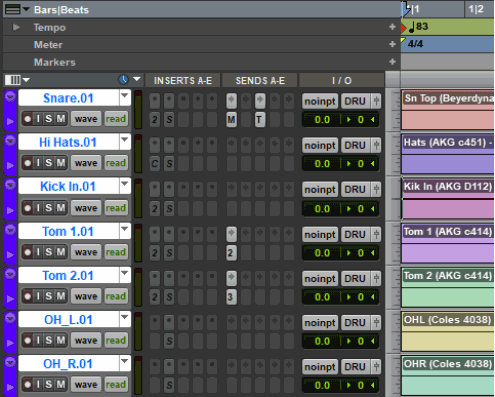
  1. Select all the tracks you want to rename. See image below. Review how to select multiple tracks...
Rename the playlist of multiple tracks in Pro Tools
  1. Right click on the name of the top track (in the Edit Window) you want to rename (Snare.01 in the image above).
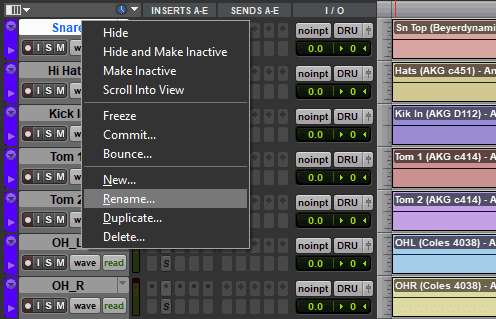
  2. Left click "Rename…" on the menu that appears.
  3. Type the new name for the track then press the Enter key or click "OK".
  1. Right click on the name of the top track (in the Edit Window) you want to rename (Snare.01 in the image above).
  2. Left click "Rename…" on the menu that appears.
Track rename menu in Pro Tools
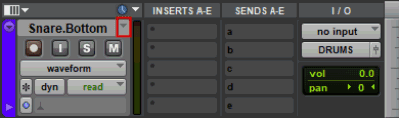
  1. Type a new name for the track then press the ENTER key on your keyboard. See image below.
Name a track window in Pro Tools

The track name dialog window for the next selected track will automatically appear to allow you to rename it. Rename it, press the ENTER key and continue this process until all the tracks have been renamed.

To bring the original version of the track/playlist back into the session:

  1. Left click on the Playlist selector dropdown arrow.
  2. Choose your original track/playlist name from the list.

Select Multiple Tracks - Pro Tools

By TOM BOWSER

How to select multiple tracks:

  1. Left click on the name of the first of multiple tracks to select it. The background turns white. See image below.
Duplicate the playlist of multiple tracks in Pro Tools
  1. Press and hold down the SHIFT key on your keyboard.
  2. Left click on the last track name to select it. All the tracks between the first and last track will also be selected. See image below.
Duplicate Multiple Playlists in Pro Tools

ALTERNATIVE:

  1. Press and hold down the CTRL key on your keyboard.
  2. Left click on the name of each track you want to select.

Duplicate The Playlist Of Multiple Tracks - Pro Tools

By TOM BOWSER

Duplicate the playlist of multiple tracks:

  1. Left click on the name of the first of multiple tracks to select it. The background turns white. See image below.
Duplicate the playlist of multiple tracks in Pro Tools
  1. Press and hold down the SHIFT key on your keyboard.
  2. Left click on the last track name to select it. All the tracks between the first and last track will also be selected. See image below.
Duplicate Multiple Playlists in Pro Tools
  1. Press and hold down the SHIFT + Alt keys on your keyboard.
  2. Left click on the playlist selector dropdown arrow to the right of the track name of any one of the selected tracks. I've drawn a red line around the Playlist selector in the image below.
A Playlist Selector in Pro Tools
  1. Left click on "Duplicate…" from the menu that appears.
Duplicate a Playlist in Pro Tools
  1. The new playlist of each track becomes the default you see in the session. Each track you've created a new playlist for is automatically given a new name. You can rename them. See image below.
New Playlist Showing Renamed Drum Tracks in Pro Tools
  1. The new playlist of each track becomes the default you see in the session. Each track you've created a new playlist for is automatically given a new name. You can rename them. See image below.

To bring the original version of the track/playlist back into the session:

  1. Left click on the dropdown arrow playlist selector.
  2. Choose your original track/playlist name from the list.

Duplicate a Tracks Playlist Before Editing - Pro Tools

By TOM BOWSER

NOTE: It's a good idea to create a duplicate playlist for any track or tracks you edit BEFORE you begin the editing process. Work on the duplicate.

If you have a duplicate track playlist you can go back to the original playlist if you make a mistake or don't like the results of editing you've done. You can use duplicate playlists as a reference to evaluate the changes you made to your edited tracks. Duplicate playlists can also be used when experimenting with new ideas and techniques on individual tracks or entire mixes.

Create a duplicate "Playlist" For a track:

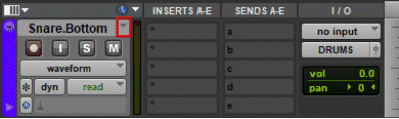
  1. Left click on the Playlist selector dropdown arrow. I've drawn a red line around it in the image below.
Pro Tools Playlist selector dropdown arrow.
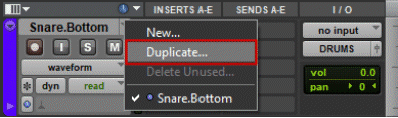
  1. Left click on "Duplicate…" from the menu that appears.
Duplicate a Playlist in Pro Tools
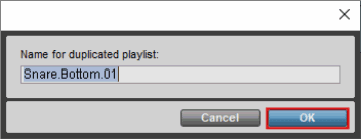
  1. Type a name for the new playlist or use the default.
Name a duplcated playlist in Pro Tools
  1. Left click on the "OK" button to save the duplicate playlist.

NOTE: The new playlist of the track becomes the default you see in the session. Each track you've created a new playlist for is automatically given a new name. You can rename them.

To bring the original version of the track/playlist back into the session:

  • Left click on the dropdown arrow playlist selector.
  • Choose your original track/playlist name from the list.

Friday, December 3, 2021

Strip Silence - To Remove Snare From Bass Drum Track

By TOM BOWSER

In this tutorial I use Strip Silence to remove the snare drum hits from a bass/kick drum track. The snare sound was unintentionally also recorded by the same microphone used to record the bass/kick drum track. The unintentional pickup of one instrument while recording another is often referred to as "bleed" or "spill" or "leakage". All three words are often used interchangeably.

Note: Save your Pro Tools session prior to using Strip Silence or performing any other editing. Duplicate a track's playlist or the entire track prior to editing. Make editing changes on the duplicate. If something goes wrong or you don't like the changes you've made you still have the original. See my "Tips" section at the end of this tutorial if you need help duplicating a track or it's playlist.

To use Strip Silence on an entire track:

  1. Left click in the lower half of the track to select and highlight the entire track.
  2. Press and hold down the Ctrl then the U key on your keyboard to open the "Strip Silence" utility. See image below.
  3. Drag the "Strip Threshold" slider completely to the right.
  4. Zero the three remaining controls by dragging the sliders to the left.
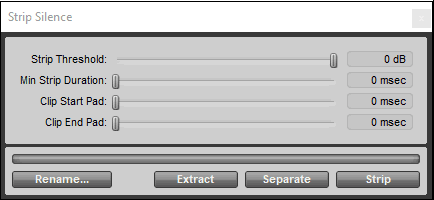
Strip Silence Window  in Avid Pro Tools
  1. Drag the "Strip Threshold" slider to the left until each drum hit has a pair of closely spaced, vertical white lines at the left. See image below.

    Review the entire track to verify this step before continuing. You need to experiment with the Strip Threshold setting to get the best setting and result. Review the track for softer hits that may be missed. Reduce the Strip Threshold setting to catch softer hits as/if needed.

    TIP: Press and hold down the Ctrl key while dragging a slider for fine control of adjustments.

Using Strip Silence on a track in Avid Pro Tools
  1. Drag the "Clip Start Pad" slider to adjust the time length before the transient/beginning of the sound. Leave enough space at the front of the transient to allow you to create a "fade-in" after you are finished using Strip Silence.
Strip Silence Window with settings in Avid Pro Tools
  1. Drag the "Clip End Pad" slider to adjust the time length after the transient.
Strip Silence Clip End Pad settings in Avid Pro Tools
  1. Your drum hits should look similar to the image below. Each drum hit should have a white rectangle around it. There should be room before the transient/beginning of each hit. The right hand edge of the rectangle should extend to the end of the decay portion of the drum hit envelope. Listen and experiment to get the sound you want.
Clip End Pad for Strip Silence in Avid Pro Tools
  1. Adjust the "Minimum Strip Duration" slider as/if needed to separate hits that are very close together. Experiment!
  2. Click the "Strip" button. Review the track to ensure you've stripped out what you wanted to remove. Manually edit and remove any section of sound you do not want and could not remove using Strip Silence. Left click on the lower half of any unwanted clip to select it, then press the Delete key.
  3. Visually inspect the track to make sure Strip Silence both removed and retained what you wanted it to. Listen to the track as the final quality check. Listen for sound dropouts, clicks and other unwanted noise.
  4. Add fade-in/outs to all the drum hit clips on the track. Fades will help prevent clicks or pops from occurring when the stripped audio clips are played. See my tips below.

TIPS:

Duplicate a track's playlist or the entire track prior to editing. Make editing changes on the duplicate to allow you to easily return to the original if something goes wrong or you don't like the changes you've made.

To duplicate a tracks playlist:

  1. Left click on the track's playlist selector. I've drawn a red line around the playlist selector in the image below.
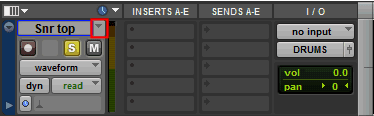
Track playlist selector in Avid Pro Tools
  1. Left click on "Duplicate…" in the menu that appears.
  2. Type a name for the duplicate or use the name that is automatically assigned.
  3. Left click on the "OK" button.

To duplicate a track:

  1. Right click the name of the track in the Edit or Mix window then choose "Duplicate…".
  2. Left click on the "OK" button to use the default settings.

Working on a duplicate of a track allows you to use the original as a reference to ensure you have not removed something you wanted to retain. You can keep both tracks visible in the session to compare them. Make the track you do NOT want to use inactive.


INCREASE the size of the track view to make it easier to see the editing you are performing.

To increase the size of the track view:

  1. Left click on the tiny down arrow to the left of the track name or right click on the grey bar before the start of the tracks clip. (see the image below)
  2. Choose your preferred size of the track view from the list that appears.
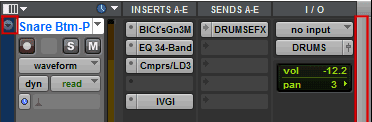
Increase the size of the track view in Avid Pro Tools
  1. Press and hold down the Ctrl key while dragging a slider for finer control of the slider.
  2. Press the t key on your keyboard and zoom out of the clip/track to verify you have not removed any part of the sound that you did not intend to remove. Press the r key to zoom back in to the track. For these quick keys to work, you must click on the a/z button inthe upper right corner of the edit window. It is yellow when enabled. (see image below) This button enables "Command Focus" keyboard shortcuts.
Enable Command Focus keyboard shortcuts
  1. Use the original track as a reference to ensure you have not accidentally deleted something from the track you wanted to keep. Position the original track above the edited track and compare them from beginning to end. If you are working on a drum track look for drum hits that may have been inadvertently stripped out or deleted.

Automatically add fades:

Add fades to the beginning and end of each remaining stripped out audio clip. Fades will help prevent clicks or pops from occurring when the stripped audio clips are played.

  1. Select all the stripped out clips on the track. To select the entire track and all its clips, click in the upper half of any clip on the track. Press and hold down the Ctrl key then the letter "a" key on your keyboard.
  2. Press and hold down the Ctrl then the f key on your keyboard. The "Batch Fades" window will appear. A 10 to 15 millisecond fade in setting is a good starting point. Adjust as/if needed to ensure that fade-ins have not removed the beginning/transient of any drum hits clips. Adjust the fade-out setting to control how long the drum hit sustains until it decays/ends. How long should the fade-out be? Experiment with different settings. Listen to the drum in the mix to see how different fade-out settings sound.
  3. Left click on the "OK" button to automatically add a fade-in and a fade-out to each stripped out clip on the track.

NOTE: Listen to the entire track after you've used Strip Silence and added fades to ensure the track sounds as you intended.


Use Strip Silence To "Clean" Tracks

Strip Silence has many uses. It is commonly used to remove unwanted sound between drum hits on a drum track.

For example, when a kick drum is recorded it is not uncommon for the kick drum microphone to also hear the snare drum and record it to the track along with the kick drum. With both drums present on the kick drum track whatever equalization or processing you apply to the kick drum will also affect the sound of the snare drum to a lesser degree. Strip Silence can be used to remove the sound of the snare drum hits from the kick drum track.

In this tutorial I used Strip Silence to remove the snare drum that was also recorded by the internal microphone intended to record the bass/kick drum. Why? When the drums are mixed together any EQ, compression or other processing or effects added to the bass/kick drum will also affect the snare drum to a lesser degree. The control we have over the sound of each drum individually (kick or snare) is reduced. If we remove or limit the snare sound presence in the kick drum track, we enhance our ability to control the sound of both drums individually.

Strip Silence can make drum tracks sound artificial if not used thoughtfully. If used on a snare track you need to listen to determine whether the drummer plays "ghost notes". Ghost notes can add interest to any snare part. If ghost notes are played are they crucial to the backbeat? Do they need to be heard? How do you think a drummer would respond to the previous questions?

Drums - Isolating - Rack and Floor Toms

Video Created by JOEL CAMERON - Transcribed by TOM BOWSER

Using the expander/gate makes it possible to isolate individual drums. This allows you to process (Example: EQ) the drum without affecting other components in the drum kit. For example, using an expander/gate to isolate a tom that is near a ride cymbal allows you to EQ the tom drum without the EQ affecting the ride quite as much. The drum will also sound a bit drier which allows you to bring up the room mic/s. There will also be less interaction between EQ used on separate drums and with artificial reverb that may be added to the track.

Left-click on the plug-in's BYPASS button after you perform each setting change indicated below. Listen to the drum without the plug-in. Left-click on the BYPASS button to enable the plug-in then evaluate the sound of the drum as modified by the plug-in.

  1. Instantiate a Pro Tools Expander/Gate Dyn 3 on the Tom track.
  2. Decrease the ATTACK time (turn knob counterclockwise) as much as possible (10.0us). This will allow the drum transient through.
  3. Use the RANGE control to adjust the amount of gain reduction. Watch the GR meter to verify. For a natural sound stick to a gain reduction of between -12 and -20 dB. Make sure the range setting is the same for each Tom, or one drum will seem heavier/more prominent in the stereo mix/image.
  4. Increase the HOLD to about 300ms or so for a medium tom drum.
  5. Set the RELEASE time from between 500 ms (millisecond) to 1000 ms.
  6. Set the RATIO control to further attenuate how much background noise or bleed is heard. The RATIO control sets the amount of expansion. Experiment with a ratio setting of around 5 or 6. Adjust until you get the sound you want.

For a larger drum, for example a floor tom you can use similar settings as listed above, but you may need to:

  • Increase the RELEASE and or HOLD times.

NEXT: Open the expander/gates plug-ins of ALL other Toms to verify the amount of gain reduction (GR) is the same on all the Toms. It will keep the sound between drums similar. If the amount of gain reduction is not similar between drums, the drum with less gain reduction will seem more present (louder) in the stereo mix. This will make the mix seem heavy on one side of the stereo image.

NOTE: One of the differences between a noise gate and an expander is a noise gate has a fixed amount of reduction until the THRESHOLD is exceeded. An expander, which is related to a gate has a RATIO control.

RATIO Control The Ratio control sets the amount of expansion. For example, if this is set to 2:1, it will lower signals below the threshold by one half. At higher ratio levels (such as 30:1 or 40:1) the expander/gate functions like a gate by cutting off signals that fall below the threshold. As you adjust the ratio control, refer to the built-in graph to see how the shape of the expansion curve changes. This control ranges from 1:1 (no expansion) to 100:1 (gating).

RANGE Control The Range control sets the depth of the expander/gate when closed. Setting the gate to higher range levels allows more and more of the gated audio that falls below the threshold to peek through the gate at all times. The range setting should be the same for all similar drums (Example, Toms) or their balance in the stereo image will be altered, making one drum appear more prominent than the other.

To learn more... Dynamics Processors: Noise gates (expanders)

Wednesday, September 8, 2021

Separate The Cross-Stick Section From a Snare Track

By TOM BOWSER

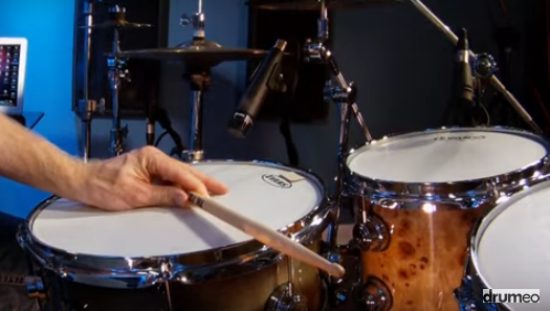
"Cross-stick is also known as side-stick and rim-click, and is played by striking one end of the drumstick, which is laid across the top of the drumhead, against the rim of the snare drum. The idea behind this technique is that of getting a woodblock type of sound from the snare drum. …"

For a demonstration video and additional details about cross-stick playing go to DrumLessons.com

This tutorial will demonstrate how to separate the cross-stick played section of a snare drum track from the rest of the track. You can then process it independently with EQ or compression, add effects and automation specific to your vision for the cross-stick playing.

  1. Click on the Commands Keyboard Focus button (a/z) to enable Commands Keyboard Focus shortcuts. It is located in the upper right hand corner of the Pro Tools Edit window directly above the vertical scroll bar. I've drawn a red line around it in the image below.

Commands Keyboard Focus in Pro Tools

  1. Left-click on the word SLIP to enable slip editing mode.

Enable Slip Editing Mode in Pro Tools

  1. Create a new mono audio track and name it "Cross Stick". Press and hold down Ctrl, then SHIFT + the letter N to create a new track. If you are using a drum bus, you may want to route this track to it.
  2. Position the new Cross-Stick track directly below the snare track that includes the cross-stick playing (while in the Edit window).
  3. Left-click inside the track where the drummer begins cross-stick playing.
  4. Press the b key to separate the clip/track at that point.
  5. Left-click inside the track where the side-stick playing ends.
  6. Press the b key to separate the clip/track at that point.

Press the b key to separate the clip

  1. Press and hold down the Windows key (has the windows logo on it). The Windows key will prevent the Cross-Stick clip/section from moving left or right on the timeline as we drag it to the new track in the next step. It will stay in sync with the rest of the tracks.
  2. Left-click and hold down your left mouse button within the bottom half of the cross-stick clip then drag it down to the new track.

Drag it down to the new track.

  1. Release your left mouse button once you have moved the cross-stick clip to the new track.

NOTE: It is common for a snare track to also include the sound of other drums or cymbals that have been recorded with it. The sound of other drums may "bleed" or leak into the snare microphone track as it is recorded.

You may consider including only the cross-stick hits and removing the hi-hat cymbals, kick and other drum hits and or noise from the cross stick track. Why? Effects (reverb), EQ and other processing added to the cross-stick track will be noticeable to a lesser degree on the hi-hat, kick and other drum bleed/leakage included on the cross-stick portion of the snare track.

For example, if you add a medium or long reverb to the cross-stick track you will hear it on the cross-stick playing, the hi-hats and the kick or other drums audible on the cross-stick track. You may or may not want a medium or long verb audible on your kick/bass-drum hits.

Manually remove the hi-hat, kick and other drum hits:

  1. Adjust the track height to make editing the track easier for you. One way to adjust the track height is to:
    • Right-click on the grey bar at the beginning of each track and choose a track height from the menu that appears. I prefer medium to large.

      Adjust Track Height in Pro Tools

  2. Zoom into a track view that makes editing easy for you. I use my mouse for zooming because it's faster. For example,
    • Hold down the ALT key on your keyboard and slowly roll your mouse scroll wheel forward to zoom out horizontally and backward to zoom in.
    • Hold down the ALT and SHIFT keys on your keyboard and slowly roll your mouse scroll wheel forward to zoom out vertically and backward to zoom in.
  3. Left-click inside the clip/track slightly before a cross-stick drum hit.
  4. Hold down your left mouse button and drag the edit/mouse cursor across and to the other side of a cross stick hit. See image below.

    Make Selection Inside Track in Pro Tools

  5. Press the b key to separate the cross stick hit from the others on the clip/track. Continue this process until you have separated all the cross stick hits within the track. Listen to each hit you have separated to ensure it is a cross stick hit.

    Press the b key to separate the clip

  6. Delete all of the non cross-stick clips remaining on the track. Be careful NOT to move any of the cross-stick hits or they will be out of sync with the rest of your drums.
    • Left click on the lower half of a clip to select it (it becomes darker).
    • Press the x key on your keyboard to delete it.
  7. Add fade-in/outs to all the cross-stick hits. Read my tutorial "Quickly Add Fade-In/Outs" for help.
  8. Listen to the cross-stick track to verify that everything sounds as it should.

TIPS:

  • If you have a bottom snare drum track you may want to include its cross-stick component in the mix. Perform the above steps to it as well as to the top snare drum microphone track. You would then have 2 separate cross-stick tracks. One track for the top of the snare and one for the bottom.

    You could add both the top and bottom snare tracks to a Pro Tools "group" and edit both tracks simultaneously. This would save you time, and time saved is money saved by the band you're working for.

  • Time Lock all the cross-stick hits on the cross-stick track. This will reduce the possibility of accidentally moving them on the timeline. If they are moved they will be out of sync with the rest of the tracks in the session.

Tuesday, August 31, 2021

Big Bottom Kick Drum

By TOM BOWSER

Need to fatten up the bottom end of an existing bass drum track? This method DOES NOT rely on using EQ to boost the bottom end of the kick. It DOES NOT require you to purchase a new plugin. Everything you need is available in most versions of Pro Tools.

For this tutorial I assume you already have a kick drum track.

How to Add Bottom End to a Kick Drum Track:

  1. Create a new mono, Aux Input track (press and hold Ctrl + Shift then N). Name it "Kick Sub" and position it below a pre-existing Kick track within the Edit window. If you use a dedicated Drum bus you may want to route the output of this track to it.
  2. Lower the volume fader of the new kick Sub track to 15.
  3. Press the solo (S) button on both the kick and Kick Sub tracks.
  4. Insert the Pro Tools "Signal Generator" on the new aux input track you created. The signal generator is located in plug-in > Other > Signal Generator (mono).

Pro Tools Signal Generator

  1. Drag the FREQUENCY slider to the left stopping at 50 Hz. You can also left click inside the FREQUENCY box and type 50. Can you hear the 50 Hz tone? If not, slowly turn up the volume fader of the Kick Sub track. Still can't hear it? You may need to buy better quality headphones or monitor speakers that are capable of reproducing a 50 Hz tone.
  2. Raise the volume fader of the new kick Sub track to 0.
  3. Insert a Dyn3 Expander/Gate (mono) (included with Pro Tools) on the Kick Sub track AFTER the Signal Generator (in the Edit window).
  4. Decrease the ATTACK time to its fastest (turn the ATTACK control fully counterclockwise).
  5. Enable the Expander/Gate side chain:
    • Left click on the small key to the right of the word SIDE-CHAIN in the side chain section. I've circled it in red in the image below. It should turn blue when enabled.

      Pro Tools Signal Generator

    • Left click on the dropdown arrow to the right of the small key of the Expander/Gate plug-in. It is outlined in red in the image below.

      Pro Tools D3 Expander Gate Side Chain

    • Left click on an unused bus to select it from the menu. An unused bus will be shown in white text. For this tutorial we used Bus 26. Any unused bus can be used.

      Pro Tools Bus Menu

  6. Create a send on your kick/bass drum track (not the Kick Sub track) and choose to send to the same bus you selected in the previous step. We used Bus 26 for this tutorial. The send fader should be set to 0.
  7. Press the play button (green arrow) on the Pro Tools Transport and listen to the combination of both the Kick and Kick Sub tracks.

Lower the volume fader of the kick Sub track then slowly raise it to blend the level of the kick sub track with the kick track. Use the solo button on the Kick Sub track to listen to the sound of the kicks both with and without the added low end of the Kick Sub Track. Experiment, listen, test on different listening devices.

Quick Overview

The Expander/Gate should now open every time the kick drum hits. When the Expander/Gate opens it will let the 50 Hz tone of the Signal Generator through.

We determine how long the 50 Hz tone is audible by adjusting the HOLD and RELEASE parameters of the Expander/Gate. Adjusting the HOLD and RELEASE times will enable you to sync the sound of the 50 Hz tone with the original kick drum track. It's the 50 Hz tone that adds the bottom end to the kick drum sound.

TIPS:

  • Experiment with the THRESH (threshold) setting. The Expander/Gate should fully open each time the kick hits. You will know the EXPANDER / GATE is fully opening if the GR (gain reduction) meter level (yellow line) moves upward to the top of its travel with each kick hit.
  • Experiment with the RELEASE setting. A slower setting lets more of the 50 Hz tone through creating a longer sustaining low end Kick Sub. Set a faster release time (turn the RELEASE control to the left) for a shorter, punchy sound.
  • If you don't seem to get enough bottom end from the Kick Sub track, increase the LEVEL on the signal generator plug-in.
  • Not getting any added bottom end using this method? Make sure you are using the same unused bus on the:
    • Send from the kick drum
    • The key input of the Expander/Gate
  • Ensure the SIDE-CHAIN of the Expander/Gate is enabled (blue)
  • The kick track send fader should be set to 0.
  • Clean the kick drum track using Pro Tools Strip Silence if the gate is triggered and opening with other drums (snare) also recorded (bleed) on the kick drum track.

NOTE: If the release setting is too fast you may hear unwanted noise (distortion) from the sub kick track with each kick hit.

You can experiment with the frequency the tone generator is set to. If you choose a frequency that is too low some speakers, headphones, earbuds will NOT be able to reproduce the frequency. Choose a frequency that is too high and it could compete with the sound of the bass guitar. Try 60 Hz instead of 50 Hz. Can you hear a difference? How does it sound with the bass guitar?